# Metadata Value Query

## Introduction

Metadata is very useful for a variety of scenarios. They can be added to items, assets, or global attributes to define common properties like a label, internal code, SKU, price, thumbnail URL, order in the front end UI, or product dimensions.

In addition to that, metadata can also be used for categorization in a similar way that tags are used. For this purpose you can add metadata fields like the material family, collection name, texture map type, component category, etc.

It can even be used for storing technical information, such as an associated stitching color code on a fabric material choice, color correction values (hue, value, or saturation) on a material, etc.

We can then make use of the metadata query inside configuration rules to fetch the values stored in these fields. This is useful for a variety of tasks:

* Perform asset queries to find assets with matching metadata as outlined in the Template Assets Guide
* Display the width, height, depth values stored in metadata on the labels of the dimensions tool
* Apply associated stitch color to the stitch material

## Usage Instructions

The metadata queries can be used in three ways - either inside rule conditions for a check if the metadata has a certain value, or inside the select actions.

### As a Condition

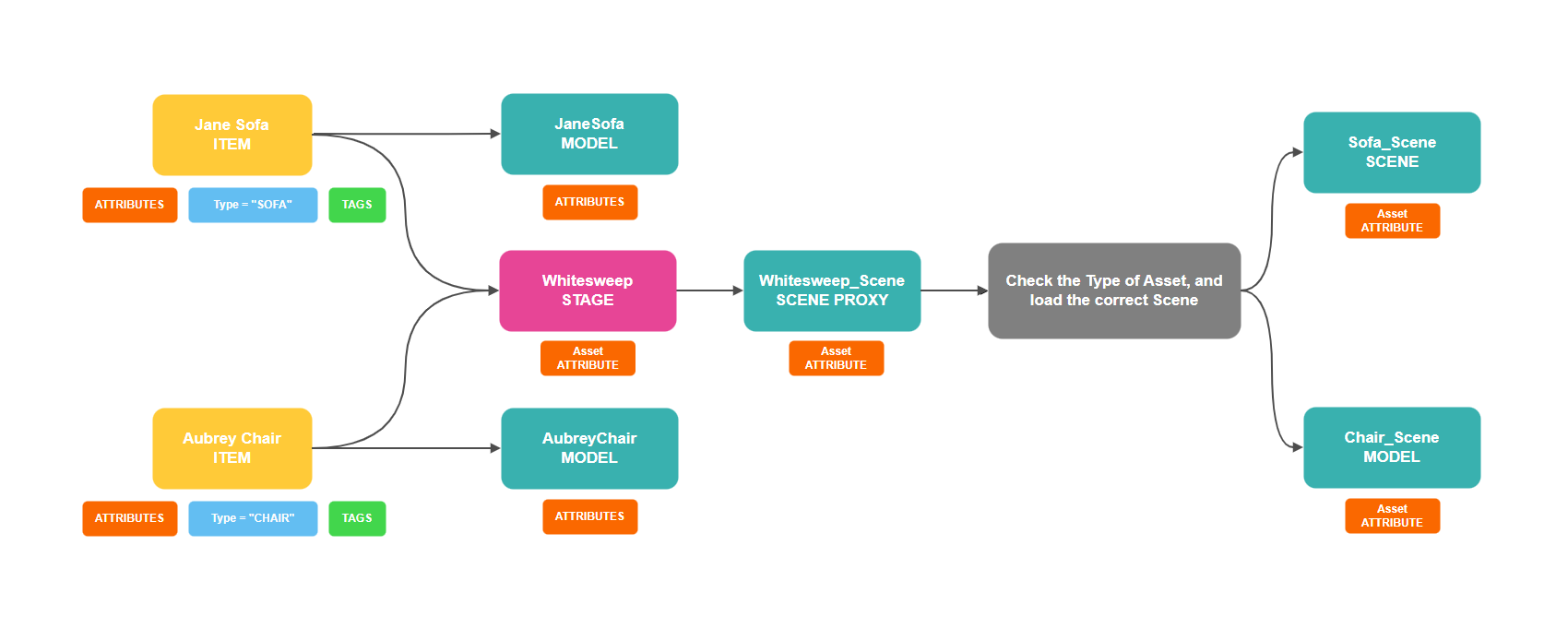
In this scenario let's imagine we have a[ ](https://community.threekit.com/platform-documentation/catalog-2.0-docs/project-data/stages)furniture product configurator where we are able to configure sofas, chairs, ottomans, tables, etc. Each one of these categories has different requirements in terms of camera position and lighting. We would thus benefit from having dedicated scenes for each one of these categories.

This can be accomplished by using a metadata field on the catalog items representing the different categories of product. Let's call it **Type**.&#x20;

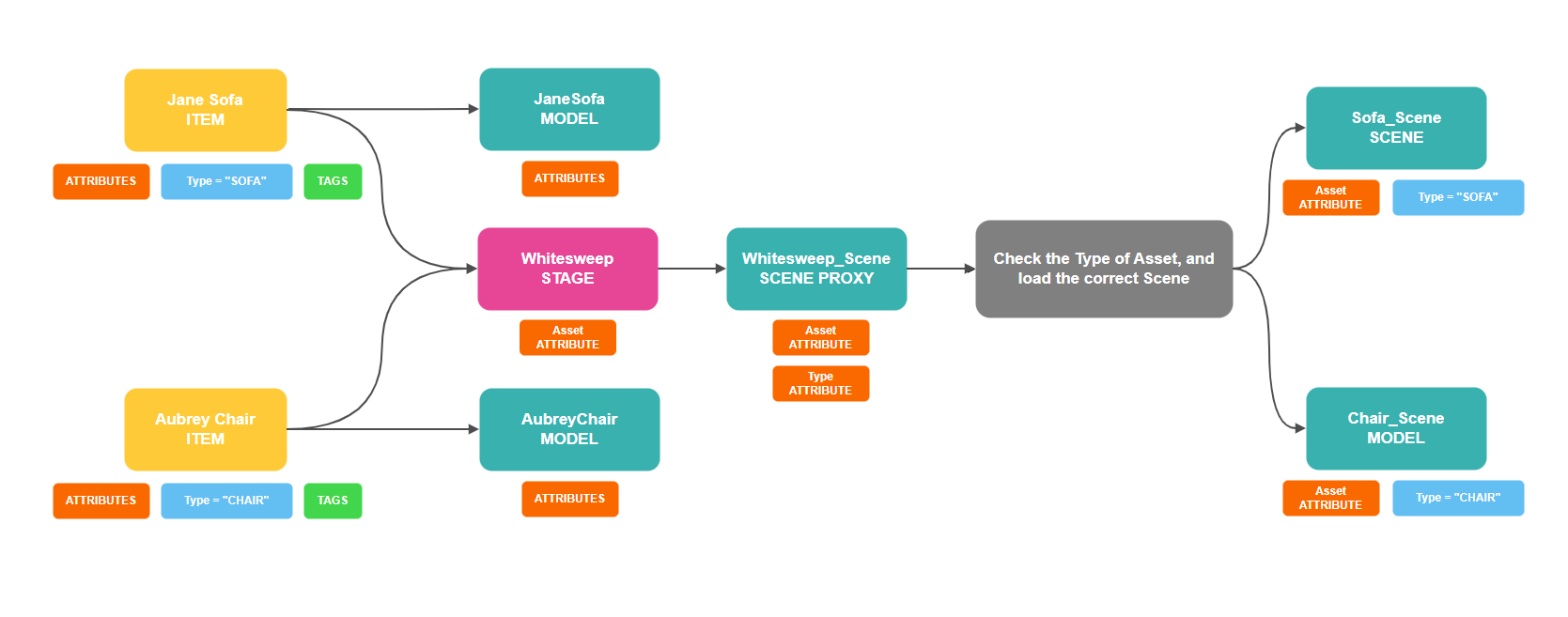
1. If **Type = "SOFA"**, then we load the Sofa\_Scene
2. If **Type = "CHAIR"** we load the Chair\_Scene

In the example below we have a setup where we share a Whitesweep Stage with all of these products. The [Stage ](https://community.threekit.com/platform-documentation/catalog-2.0-docs/project-data/stages)references a Proxy Scene asset, where we can hold our logic to swap between the different types of scenes.

<figure><img src="https://content.gitbook.com/content/efQOUWnh8WUpteoAKY9N/blobs/BxXMDKAymp2fzhn7Jnva/MetadataQuery_01.png" alt=""><figcaption><p>Loading the correct scene based on Product Type</p></figcaption></figure>

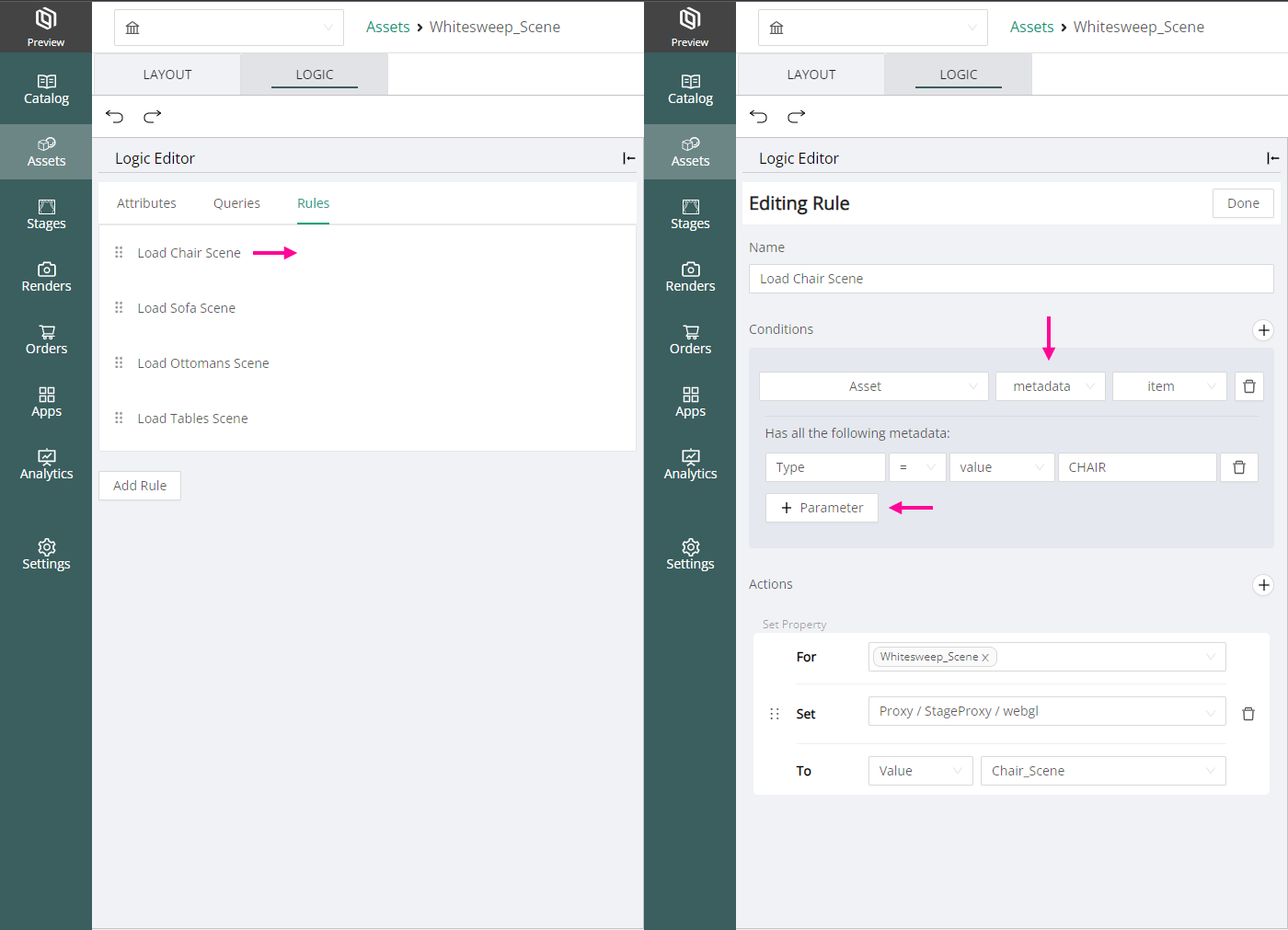
Inside the Proxy Scene asset we would add rules to check for the value of the **Type** metadata field on the item passed through the Asset attribute.

<figure><img src="https://content.gitbook.com/content/efQOUWnh8WUpteoAKY9N/blobs/wTO4q0lvUHNII9tOBbzS/MetadataQuery_02.png" alt="" width="525"><figcaption><p>Using Metadata Query in Conditions</p></figcaption></figure>

{% hint style="info" %}
Use the **+Parameter** button to add more metadata key-value pairs to the query.&#x20;

All of the listed key-values must resolve to true for the condition to be met.
{% endhint %}

### Set Attribute Value or Set Property

With the Set Attribute Value action we can grab the value of the metadata fields and assign it to an attribute of the same type as the metadata. Since metadata fields can be created only of type String or Number, the attributes also need to be be of either one of these values.

{% hint style="info" %}
For String-type attributes, it would be necessary to declare the attribute with empty values, in order to use it as a variable that can receive any value.
{% endhint %}

In the example above where we used a Proxy Scene to swap scenes based on the metadata field **Type**, we are creating individual rules for each possible value (SOFA, CHAIR, etc). This would be the most performant method.&#x20;

A more automated and scalable method would be to load the matching scene based on metadata matching, as outlined in the [Template Assets Guide](https://app.gitbook.com/s/8N1IA5a0lqRClKT5eQQ7/learn/workflows/template-assets#template-models). In this case we would need to read the metadata into a local string attribute first, then use that attribute to perform an [Asset Query](https://community.threekit.com/platform-documentation/catalog-2.0-docs/project-data/logic/queries/asset-query) to load the appropriate scene.

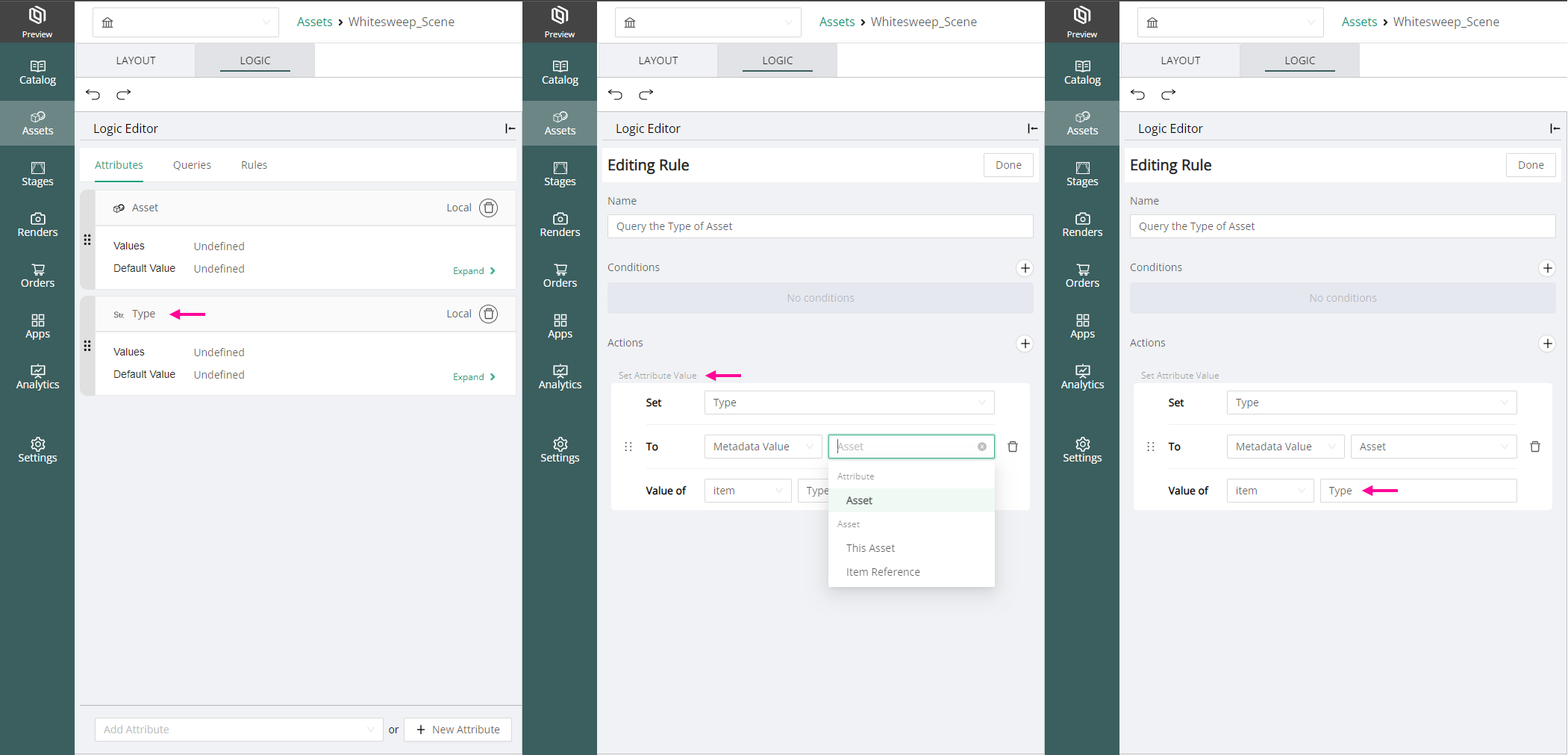
<figure><img src="https://content.gitbook.com/content/efQOUWnh8WUpteoAKY9N/blobs/ZoNyU3MAa665adKi8lQ1/MetadataQuery_03.png" alt=""><figcaption><p>Changing Scenes based on Metadata Matching</p></figcaption></figure>

<figure><img src="https://content.gitbook.com/content/efQOUWnh8WUpteoAKY9N/blobs/5IGeCqkuZmfMaarn73Uw/MetadataQuery_04.png" alt=""><figcaption><p>Using Set Attribute Value Action with Metadata Value Query</p></figcaption></figure>

As seen in the logic view, we are using the **Metadata Value** option for the **Set Attribute Value** action. This will perform the metadata value query for the metadata field named **Type**, and store the value in the Local string attribute named **Type**.

Similarly, the Metadata Value query can also be used with the **Set Property** action, on a property that is of type String or Number. This would enable us to read the metadata value and immediately pass it to a property on a node or operator.&#x20;

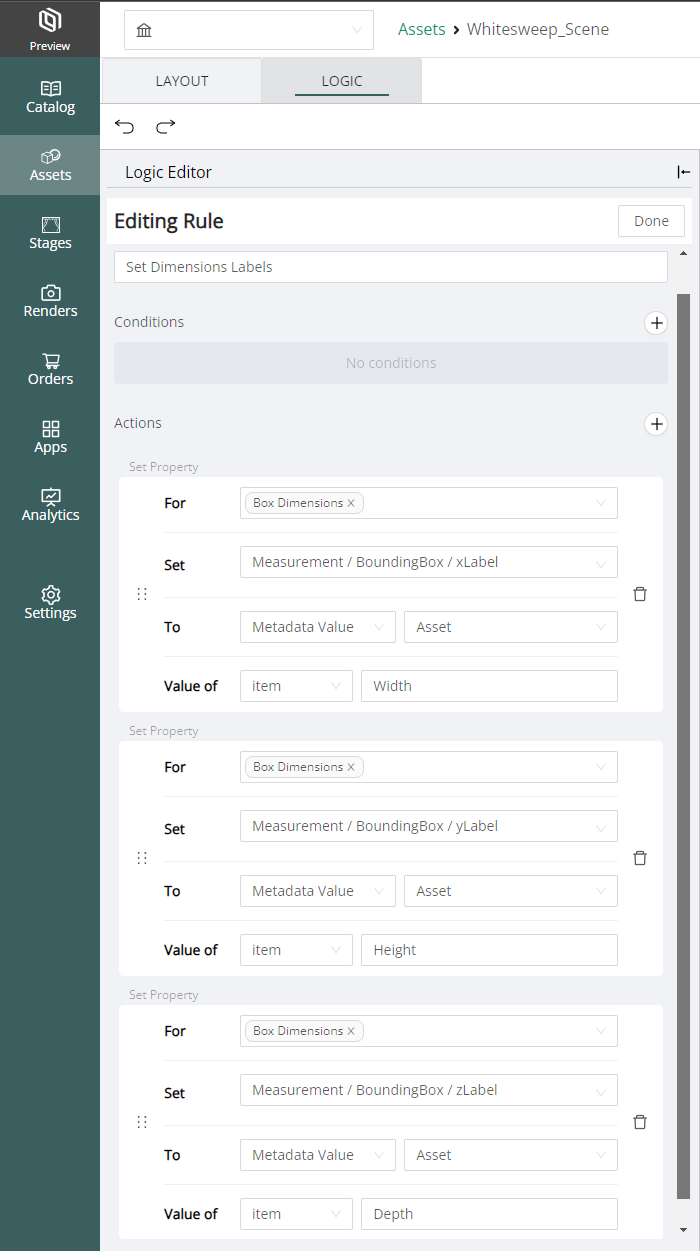
For example, this can be used to read the **Width, Height,** and **Depth** metadata fields from the Sofa, and display it as the label for a **Box Dimension** label properties.

<figure><img src="https://content.gitbook.com/content/efQOUWnh8WUpteoAKY9N/blobs/eymjj93wwbBJxwiQevSq/MetadataQuery_05.png" alt="" width="525"><figcaption><p>Using Metadata Value Query with the Set Property action</p></figcaption></figure>

### Item vs Asset Reference

A Metadata Value query inside conditions can only be performed on the Items and Assets passed through the specific attribute listed in the Condition. This would give you the following choices:

* **Item** - search for the metadata field named **Type** on the Item currently passed through the attribute Asset. In this case it would be the **Aubrey Chair item**, or the **Jane Sofa item**.
* **Asset** - search for the metadata field named **Type** on the Asset referenced by the Item passed through the attribute Asset. In this case, it would search for metadata on the **JaneSofa model** or the **AubreyChair model**.

However, when we use this query with the **Set Attribute Value** action we can choose to search for metadata on either one of the following:&#x20;

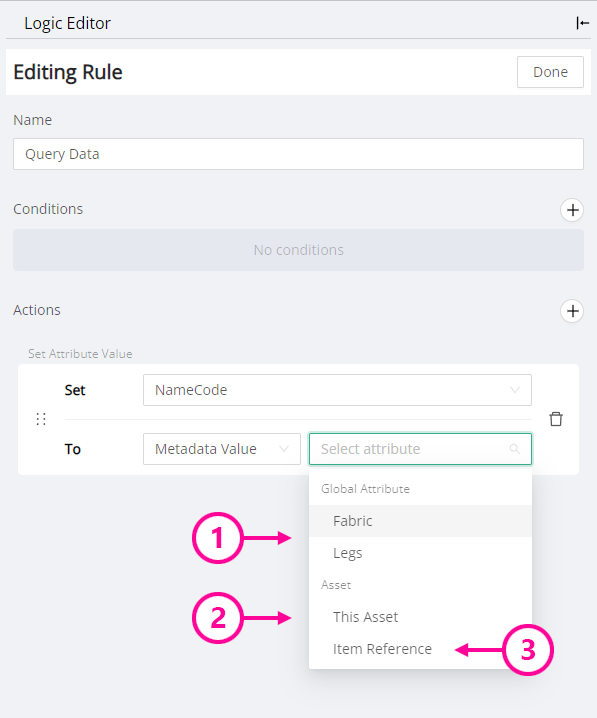
<figure><img src="https://content.gitbook.com/content/efQOUWnh8WUpteoAKY9N/blobs/xJ8VLZ7Lfhs6umh1INo9/MetadataQuery_06.png" alt="" width="448"><figcaption></figcaption></figure>

1. The item or asset passed through one of the listed attributes. In the example above we choose the **Asset** attribute specifically. This option is only available when we have asset-type attributes added to the current asset. \
   **If no attributes of type asset are available, you will not see this option at all.**
2. **This Asset** - In our case that would mean searching for metadata on the current Whitesweep\_Scene asset
3. **Item Reference** - The item that references the current asset. In our case, the Whitesweep\_Scene is referenced by the Whitesweep Stage