> For the complete documentation index, see [llms.txt](https://community.threekit.com/llms.txt). Markdown versions of documentation pages are available by appending `.md` to page URLs; this page is available as [Markdown](https://community.threekit.com/platform-documentation/catalog-2.0-docs/project-data/assets/materials/json-configuration.md).
# JSON Configuration
{% hint style="info" %}
The following instructions are not recommended anymore, but they can be useful to understand some existing implementations.
{% endhint %}
All visual assets can be made configurable in and of themselves, providing a greater degree of flexibility and reusability. This is especially useful when a Catalog contains a number of 'families' of finishes/surfaces/fabrics.
#### Configurable Material
Materials such as leather, suede, etc. are often times offered in any number of colors. The underlying look and feel of the material itself does not change from color to color; for example, you would expect red leather to feel the same as blue leather. It follows then that a 3D artist would not want to maintain dedicated assets per color of material. Doing so is neither efficient, nor easily scaleable. It is far easier to maintain a single asset for a leather material, and incorporate a configurable color attribute via Logic Mode. Said color attribute may then be used to address the color requirements of leather within the Catalog.
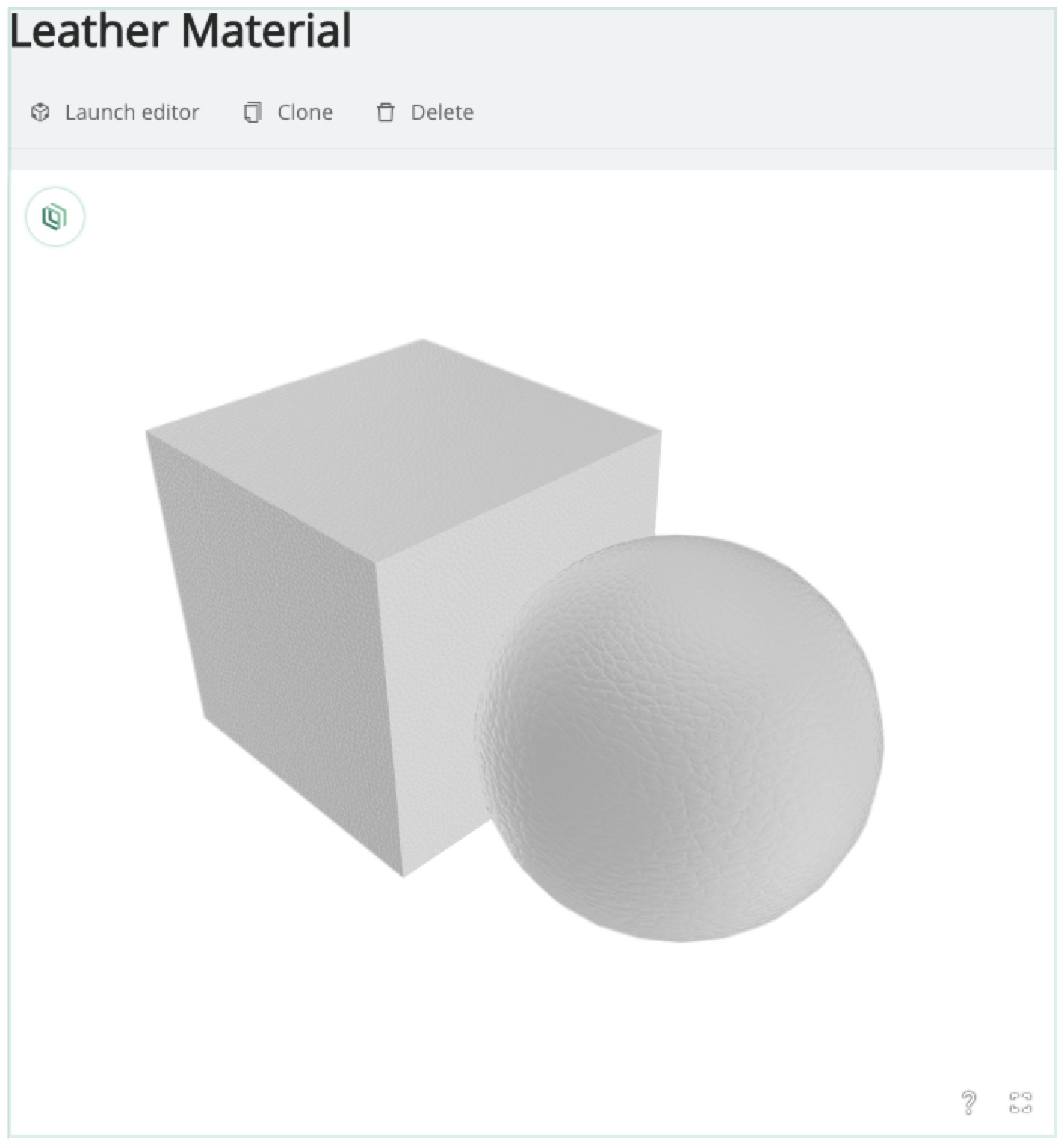
Assume a leather material has been uploaded.
Continuing the story line from above, the leather is offered in both blue and red. Blue Leather and Red Leather must exist as Items within the Catalog. In order to accomodate this requirement the following steps are taken.
**Prepare the Material Asset**
1.) From the Leather Material Asset, Launch the Editor and enter Logic Mode
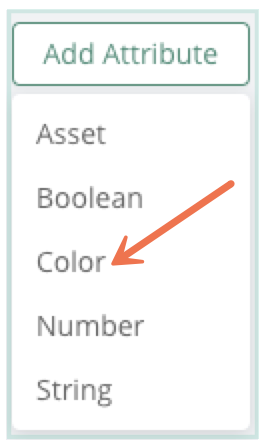
2.) Create a Color Visual Attribute
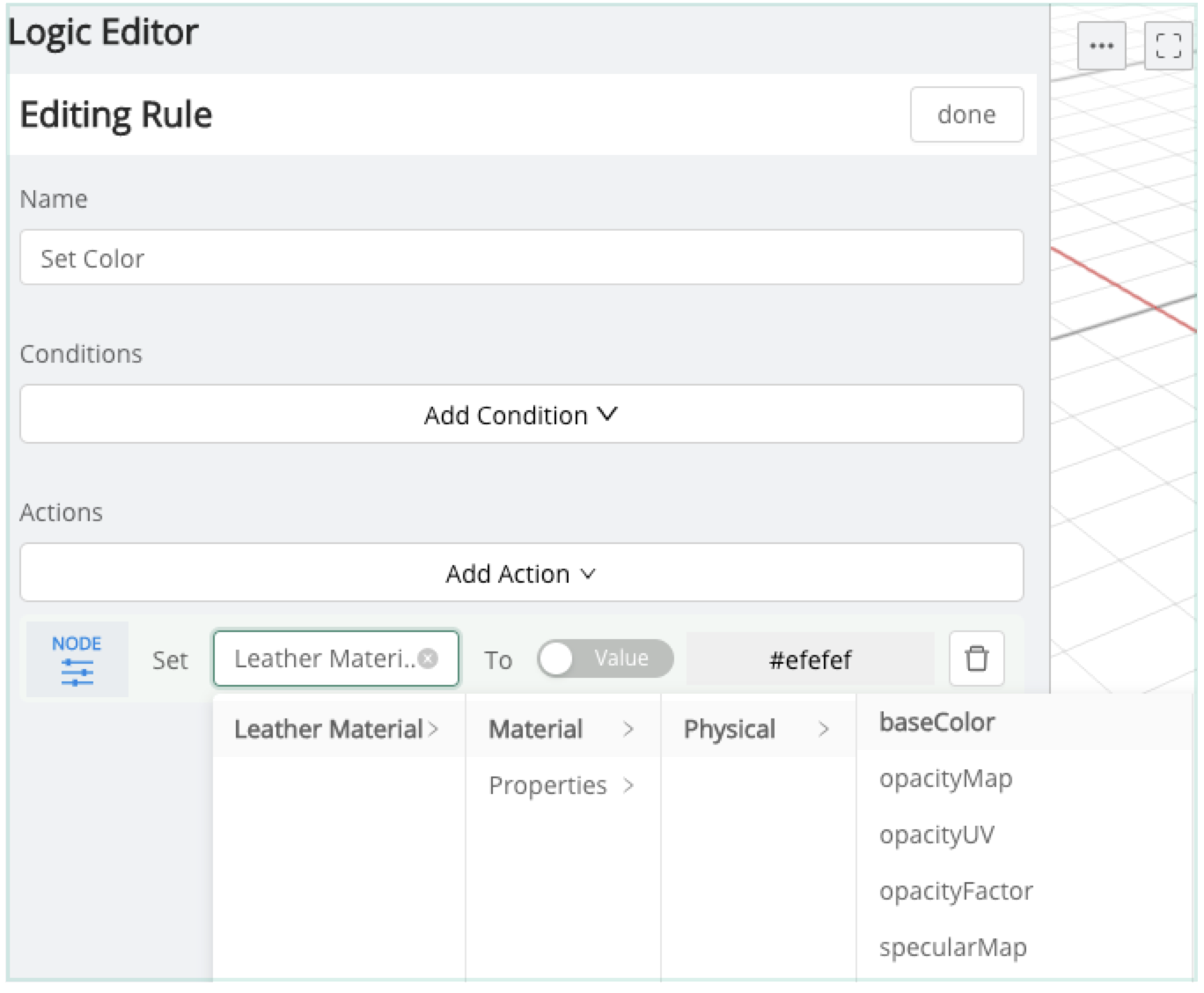
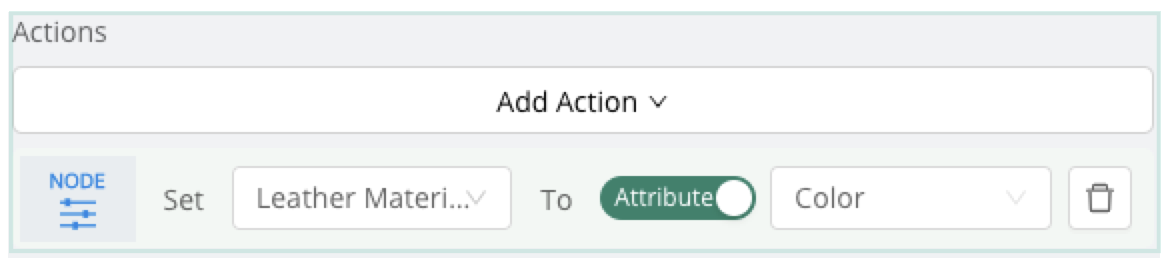
3.) Create a corresponding rule to modify the baseColor of the Leather Material
(be sure to set the Toggle to "Attribute" with the "Color" Attribute selected)
**Create the Catalog Item**
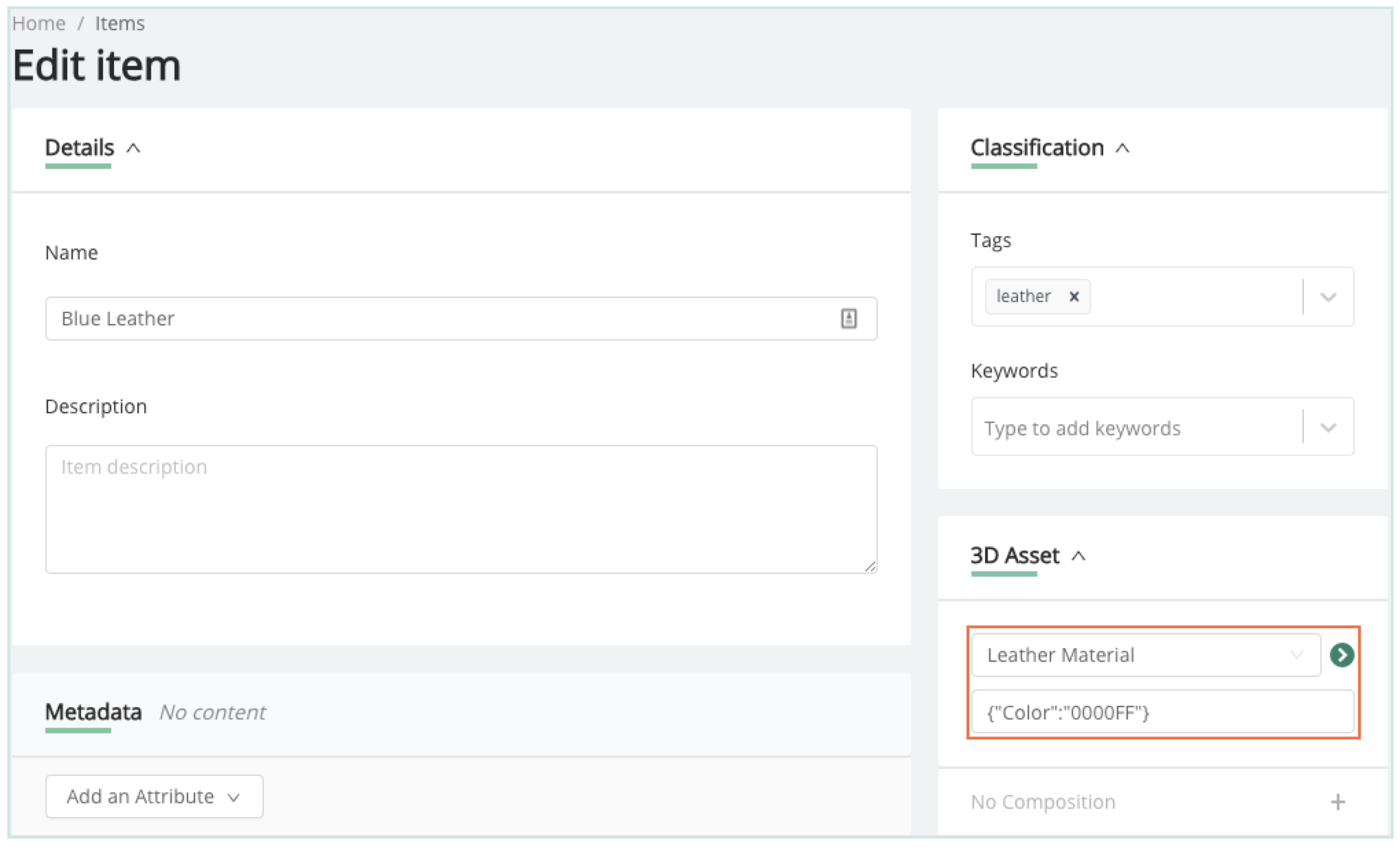
4.) Create a Blue Leather Item, referencing the Leather Material\
5.) Set the Color Attribute by way of the 'Asset JSON configuration' field and Save

#### Setting Textures on Configurable Materials
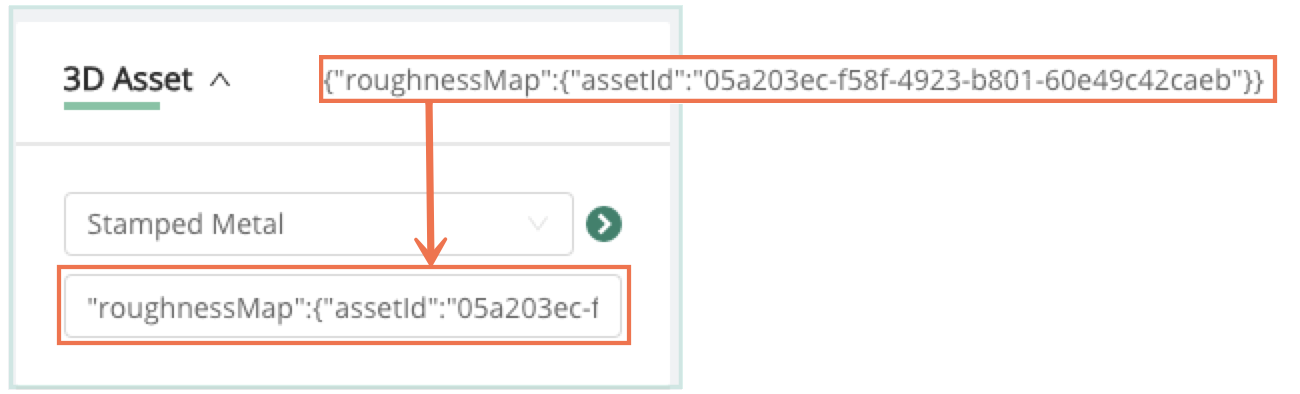
The 'Asset JSON configuration' field on Catalog Items may also be used to set/swap maps on a material. To do so, the unique identifier of the desired texture is used within the 'Asset JSON configuration' string.
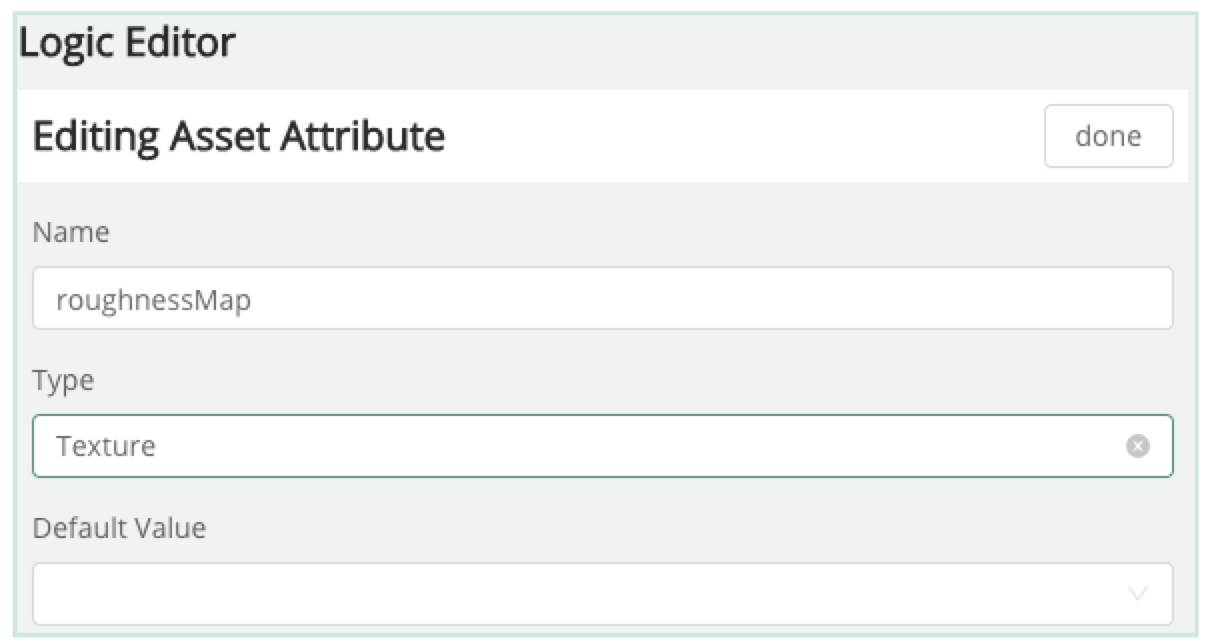
Suppose a Metal Finish was offered in few different stamped patterns. It might then be necessary to swap the roughness map for each of the stamped patterns (in addition to other reference images). Similar to the workflow above, an Attribute would be created on the appropriate metal material asset:
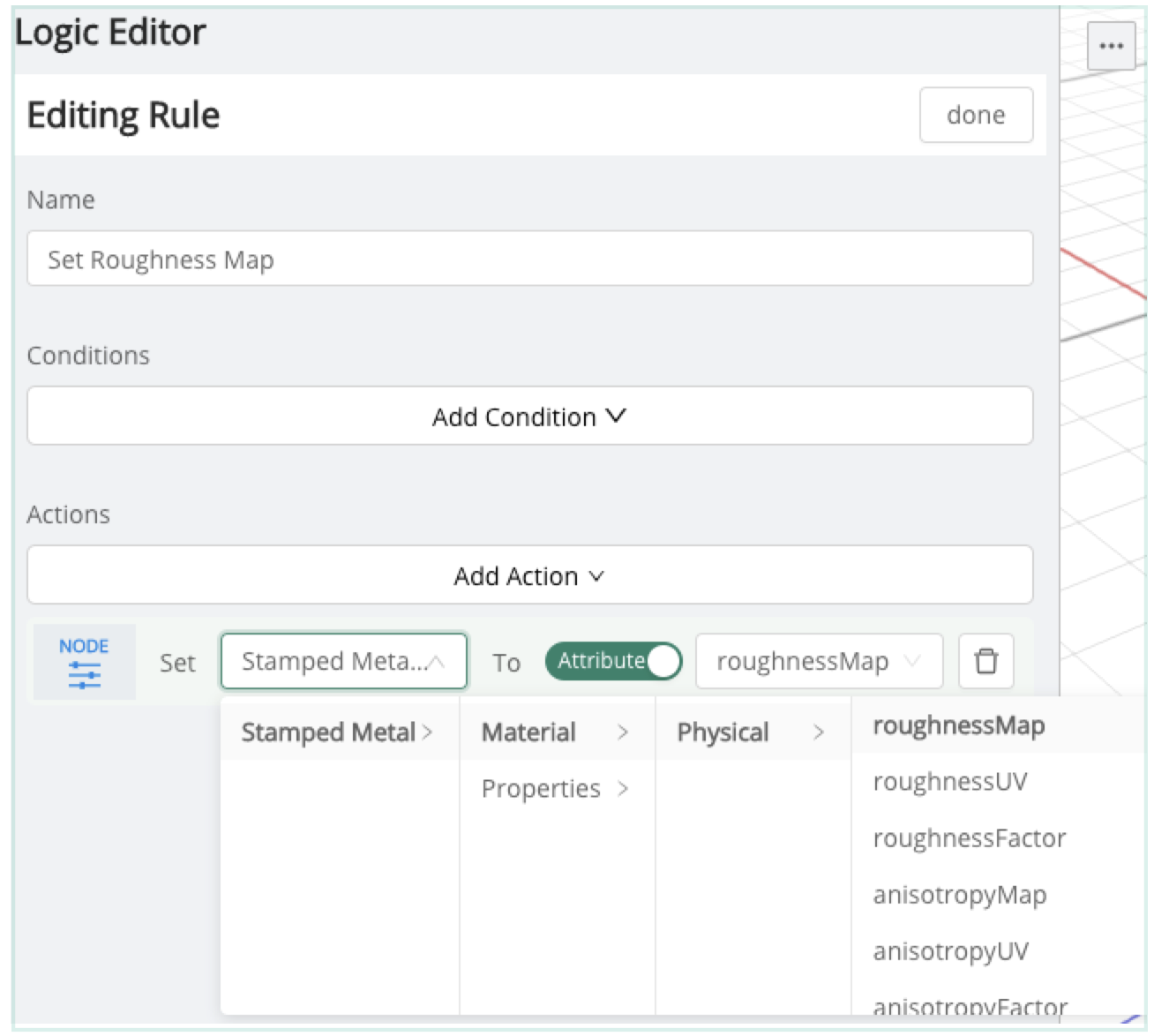
With a corresponding rule targeting the 'Roughness Image Asset':
Which can be set via JSON to accomodate the required Items in the Catalog:
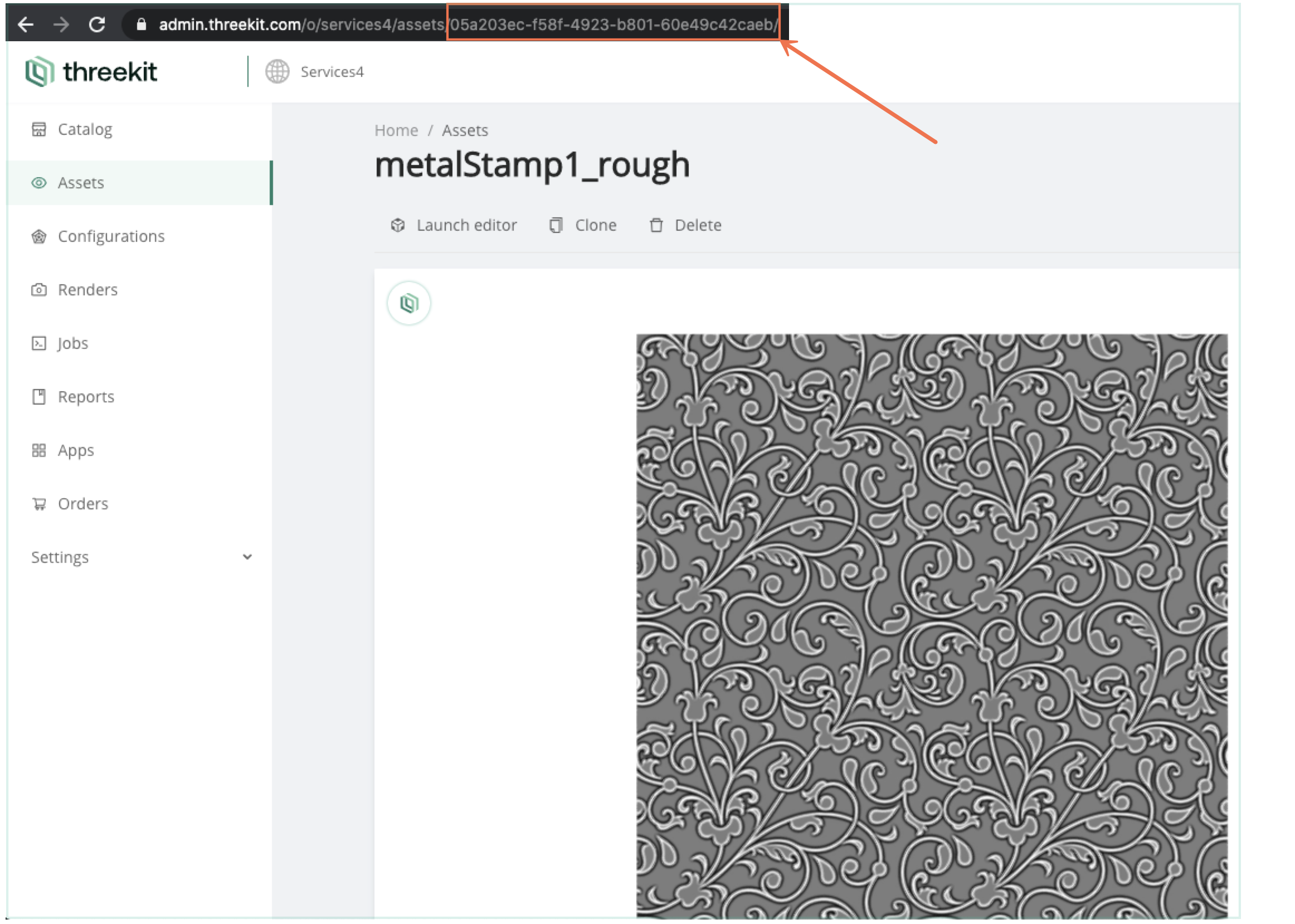
Of note, the 'Asset JSON configuration' field makes use of the unique identifier (present in the URL) referencing the necessary image (Texture Asset) from the Asset library:
---
# Agent Instructions
This documentation is published with GitBook. GitBook is the documentation platform designed so that both humans and AI agents can read, navigate, and reason over technical content effectively. Learn more at gitbook.com.
## Querying This Documentation
If you need additional information that is not directly available in this page, you can query the documentation dynamically by asking a question.
Perform an HTTP GET request on the current page URL with the `ask` query parameter, and the optional `goal` query parameter:
```
GET https://community.threekit.com/platform-documentation/catalog-2.0-docs/project-data/assets/materials/json-configuration.md?ask=&goal=
```
`ask` is the immediate question: it should be specific, self-contained, and written in natural language.
`goal` is optional and describes the broader end goal you are ultimately trying to accomplish on behalf of the user. GitBook uses it to tailor the answer towards what is most useful for that goal.
The response will contain a direct answer to the question and relevant excerpts and sources from the documentation.
Use this mechanism when the answer is not explicitly present in the current page, you need clarification or additional context, or you want to retrieve related documentation sections.
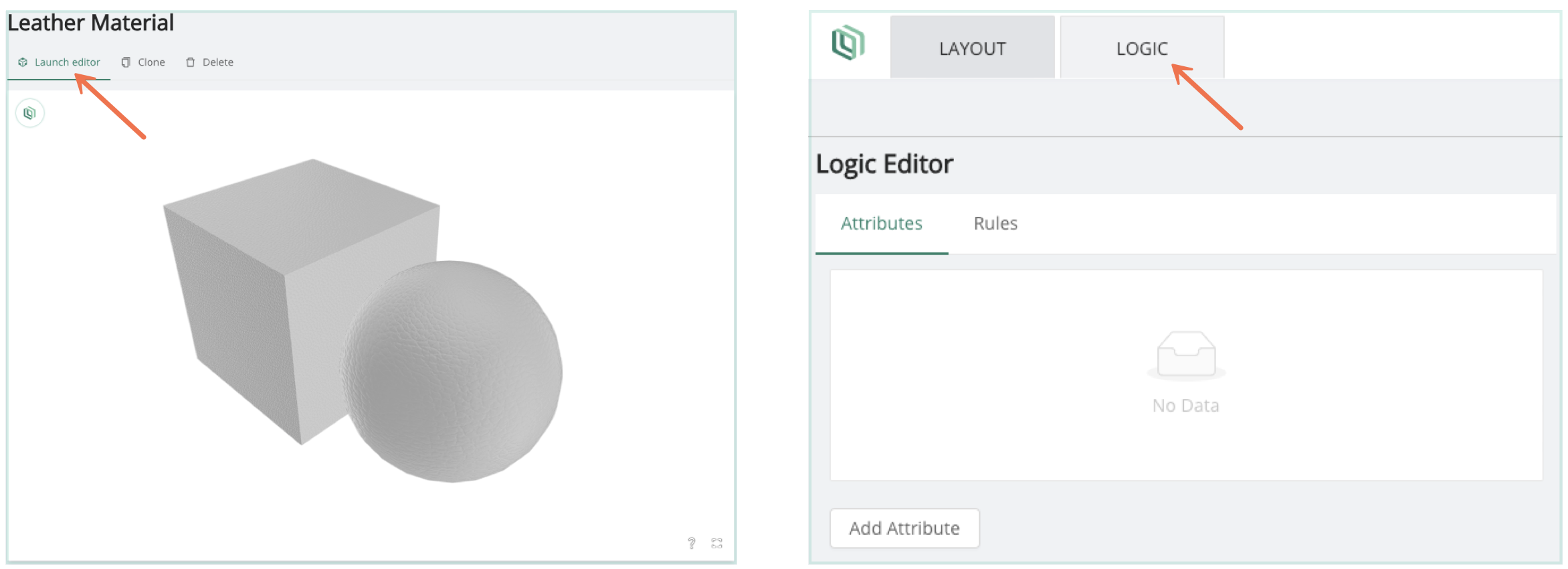
 Continuing the story line from above, the leather is offered in both blue and red. Blue Leather and Red Leather must exist as Items within the Catalog. In order to accomodate this requirement the following steps are taken.
**Prepare the Material Asset**
1.) From the Leather Material Asset, Launch the Editor and enter Logic Mode
Continuing the story line from above, the leather is offered in both blue and red. Blue Leather and Red Leather must exist as Items within the Catalog. In order to accomodate this requirement the following steps are taken.
**Prepare the Material Asset**
1.) From the Leather Material Asset, Launch the Editor and enter Logic Mode