# Advanced Buyer Analytics Reports

## Overview

The Analytics Reports can be used to garner insight into how your users interact with the Threekit-driven experience. The data can provide information about buyer trends for specific products or options, over a given time period.

These reports capture three broad categories of data:

* **Configuration Changes** - what the customer looks for
* **Player Load Time** - how long the customer has to wait to get the visuals
* **Session Length** - how long the customer spends during configuration

The resulting reports are presented as a set of spreadsheets which contain the raw analytics data, ready for download as .csv files.&#x20;

{% hint style="info" %}
In order to visualize the data or extract specific information, these spreadsheets would need to be processed by an external data manipulation toolset or script.
{% endhint %}

## Usage

### Enable Advanced Buyer Analytics

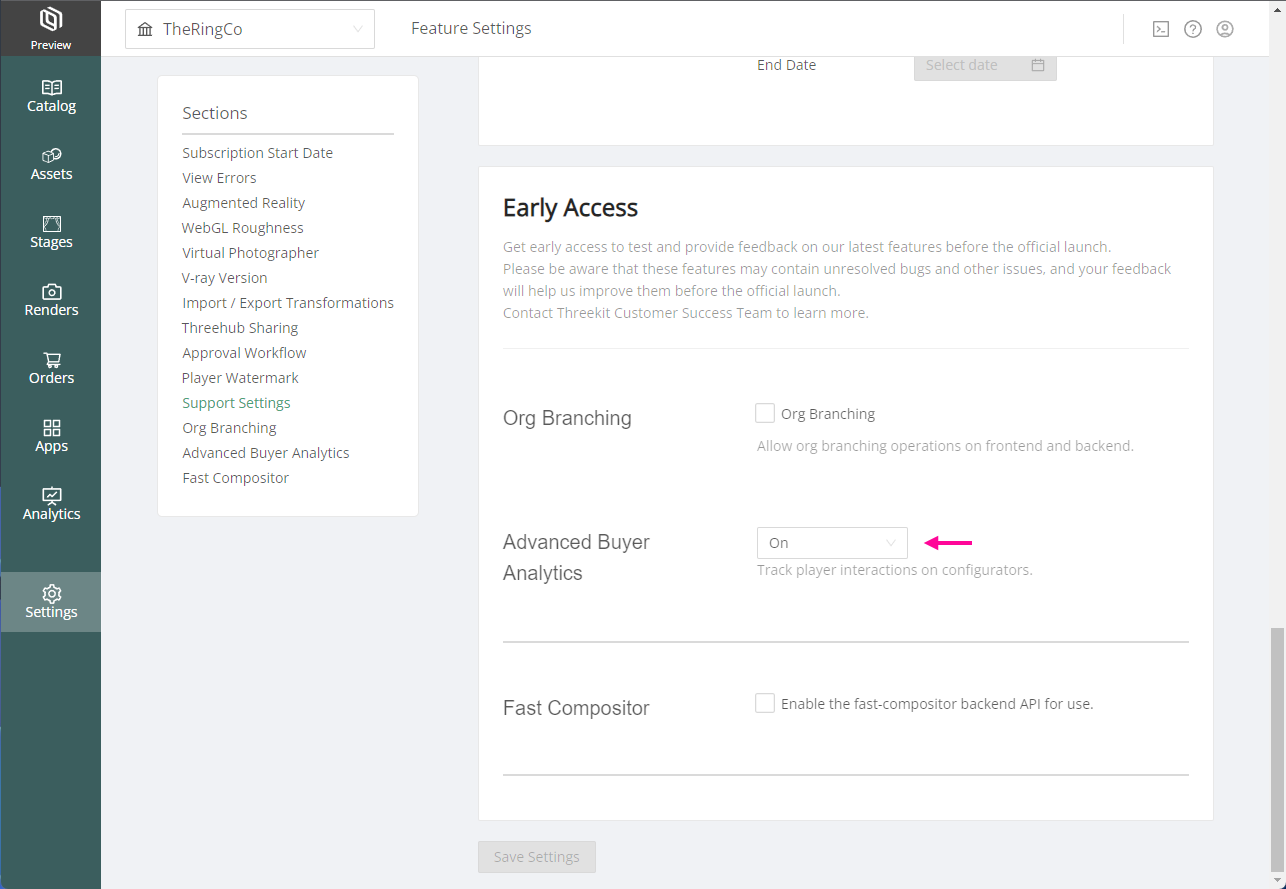
To get access to these reports, ThreeKit org administrators need to enable the Advanced Buyer Analytics feature for that specific org. Please reach out to your Account Executive or Customer Success Manager for more details.

<figure><img src="https://content.gitbook.com/content/efQOUWnh8WUpteoAKY9N/blobs/OucZOi2EtJJzRrfv4gje/AnalyticsReports_01.png" alt=""><figcaption><p>Enable Advanced Buyer Analytics</p></figcaption></figure>

### Generate Reports

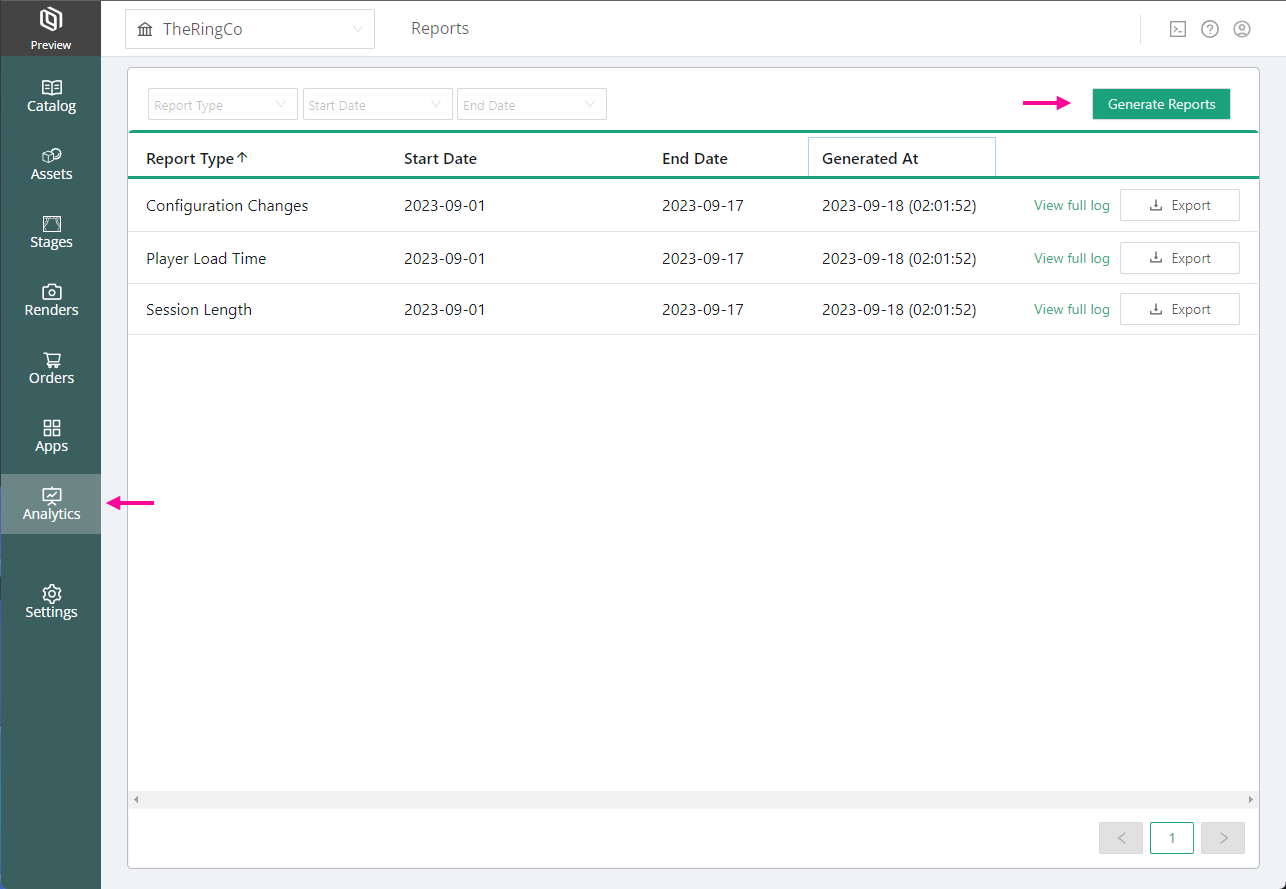
Once the feature has been enabled, you will then be able to generate the reports by accessing the Reports page under the main Analytics section from the org sidebar.

<figure><img src="https://content.gitbook.com/content/efQOUWnh8WUpteoAKY9N/blobs/yB5yigE7EShooeZsRPZS/AnalyticsReports_02.png" alt=""><figcaption><p>Access the Reports</p></figcaption></figure>

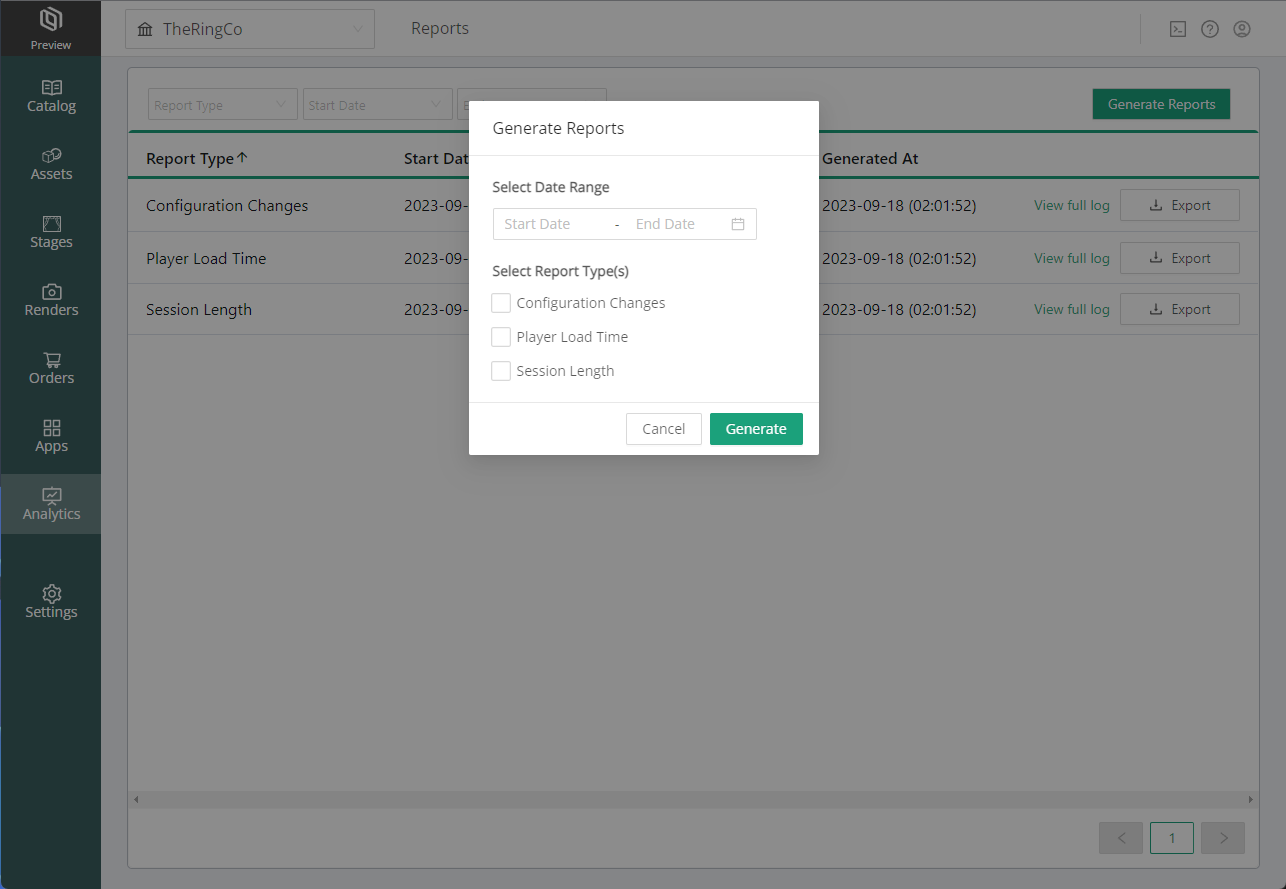
You have the choice to generate any of the following reports, based on a given Start Date and End Date:&#x20;

* Configuration Changes
* Player Load Time
* Session Length

<figure><img src="https://content.gitbook.com/content/efQOUWnh8WUpteoAKY9N/blobs/6kPOampJFjerwJcKEM6N/AnalyticsReports_03.png" alt=""><figcaption><p>Generate new Reports</p></figcaption></figure>

Once the reports have been generated, they will become available as entries on the Reports page. Each one will have an Export button available that enables the user to download the CSV file for that particular report.

The **View Full Log** option beside each report will take the user to the Job page that was used to generate the report. The task in that job can provide some additional information about the job, for troubleshooting purposes.

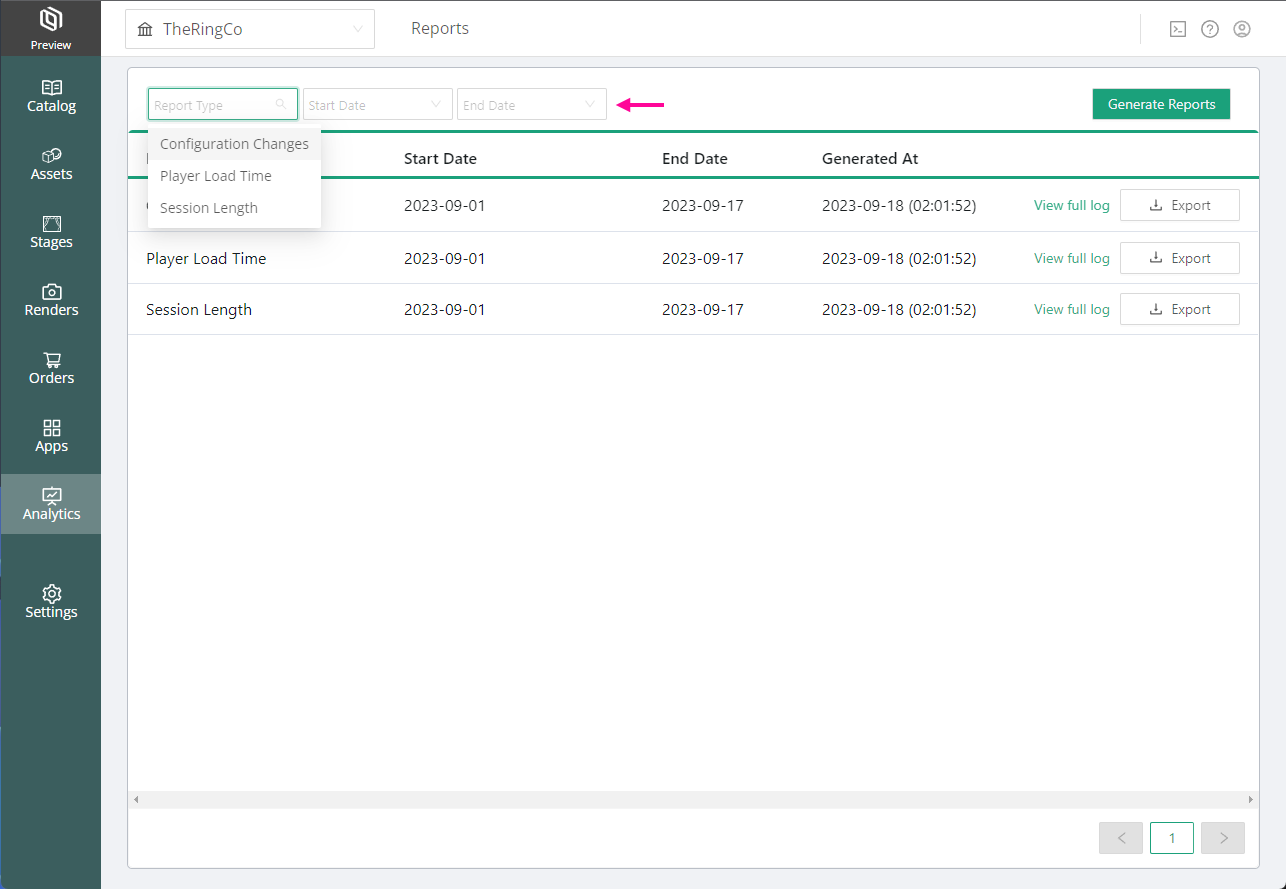
The Reports page can also be filtered by **Report Type**, **Start Date**, and **End Date**.

<figure><img src="https://content.gitbook.com/content/efQOUWnh8WUpteoAKY9N/blobs/VHDyeZdO7iH0r0Agi98a/AnalyticsReports_04.png" alt=""><figcaption><p>Filter the Reports Page</p></figcaption></figure>

### Report Fields

**`event_descriptor`** - the name of the measured event (typically Configuration Change, Player Load Time, or Session Length)

**`session_id`** - a uniquely generated code to identify one session (i.e. a single-page visit). Events with the same session\_id all occurred within the same single session

**`asset_id`** - the Threekit Item or Asset referenced by the player

**`client_provided_id`** - a field referencing external analytics data, allowing you to match a Threekit session\_id to that external data. It is empty by default but can be populated by following our documentation [here](https://developer.threekit.com/docs/provide-session-ids-to-advanced-buyer-analytics).

**`event_timestamp`** - the date and time in which the event occurred

**`device_type`** - the device and browser used during the session

**`org_id`** - the reference to the Threekit organization used

**`current_configuration`** - contains the configuration data for each event stored as a JSON script, which includes the asset IDs of all the options used in that configuration

**`total_time_in_seconds`** - the time it took the player to fully initialize

**`total_time_spent_seconds`** - the time a user spent on the configurator page

**`meta`** - a legacy field for additional information, typically left blank

### Configuration Changes Report

Events will show up on this spreadsheet based on when the buyers perform configuration changes on any of the catalog items. For example, when the users make a choice of material, change to a different camera, or even when they enter personalization text.

Custom events can also be triggered through a custom script using the [Create Event API](https://developer.threekit.com/reference/createevent). This could be particularly useful for modular configuration.

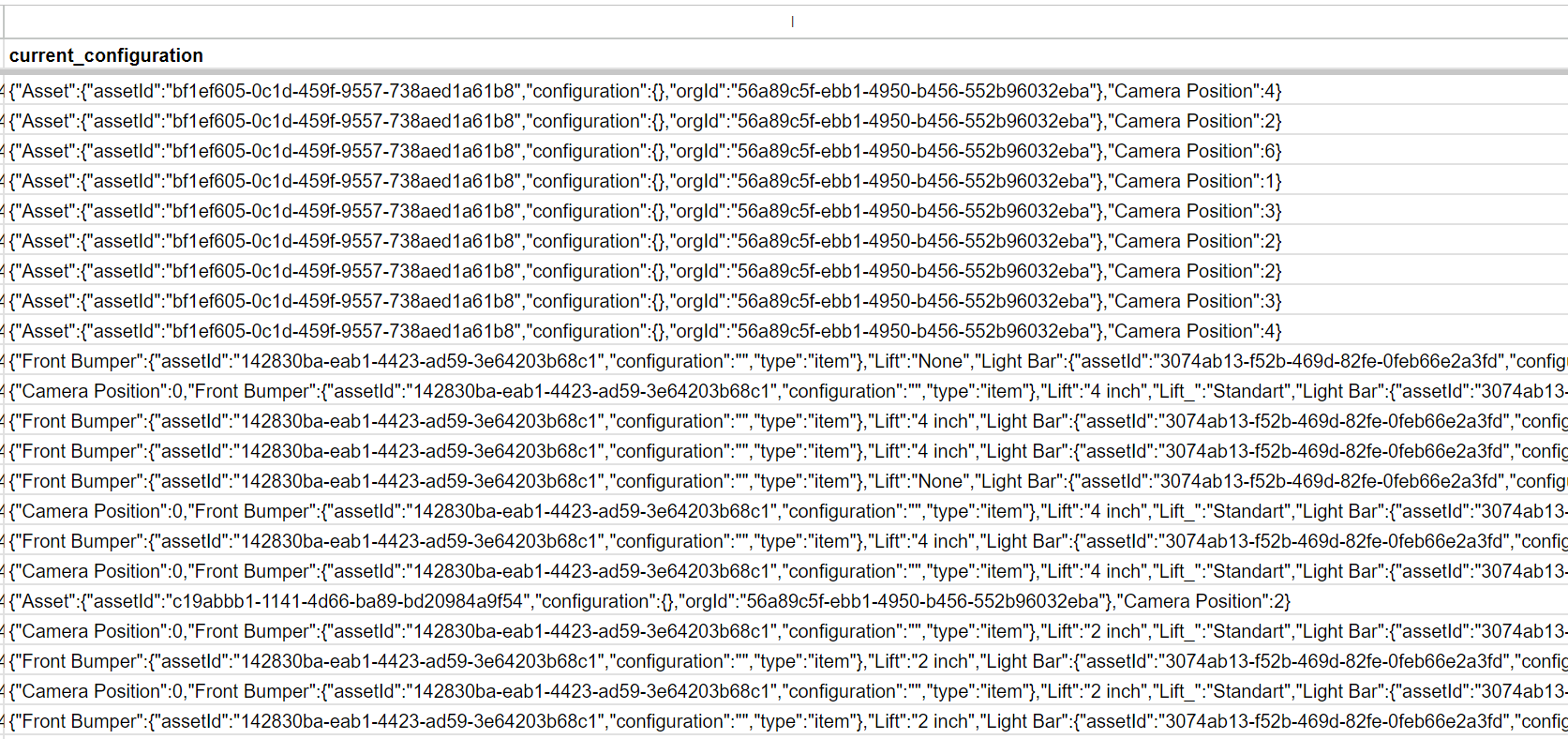
The **current\_configuration** column inside the Configuration Changes report will contain a JSON script, which contains all the choices made by a user in every step. Some steps may trigger multiple configuration changes, such as the choice of a suit fabric triggering a change of button and stitching thread colors.&#x20;

The JSON script will include the asset IDs of all the options used in configuration changes.

<figure><img src="https://content.gitbook.com/content/efQOUWnh8WUpteoAKY9N/blobs/Zf28KNBxNHoa9ezGICaF/AnalyticsReports_05.png" alt=""><figcaption><p>Example of <strong>current_configuration</strong> column</p></figcaption></figure>

### Google Analytics

It is possible to correlate the data from the ThreeKit reports with Google Analytics based on session IDs and time-stamps. You would need to associate a ThreeKit `session_id` with a Google Analytics Session ID. Once set up, the ThreeKit report will populate the `client_provided_id` column with the Google Analytics Session ID.

The resulting report can then be loaded by an external data manipulation script or toolset for further processing using the session IDs and time stamps.

[Here is a guide](https://developer.threekit.com/docs/provide-session-ids-to-advanced-buyer-analytics) on matching the session IDs from the external analytics data, to the data from the ThreeKit reports.

### Excluding Items From The List

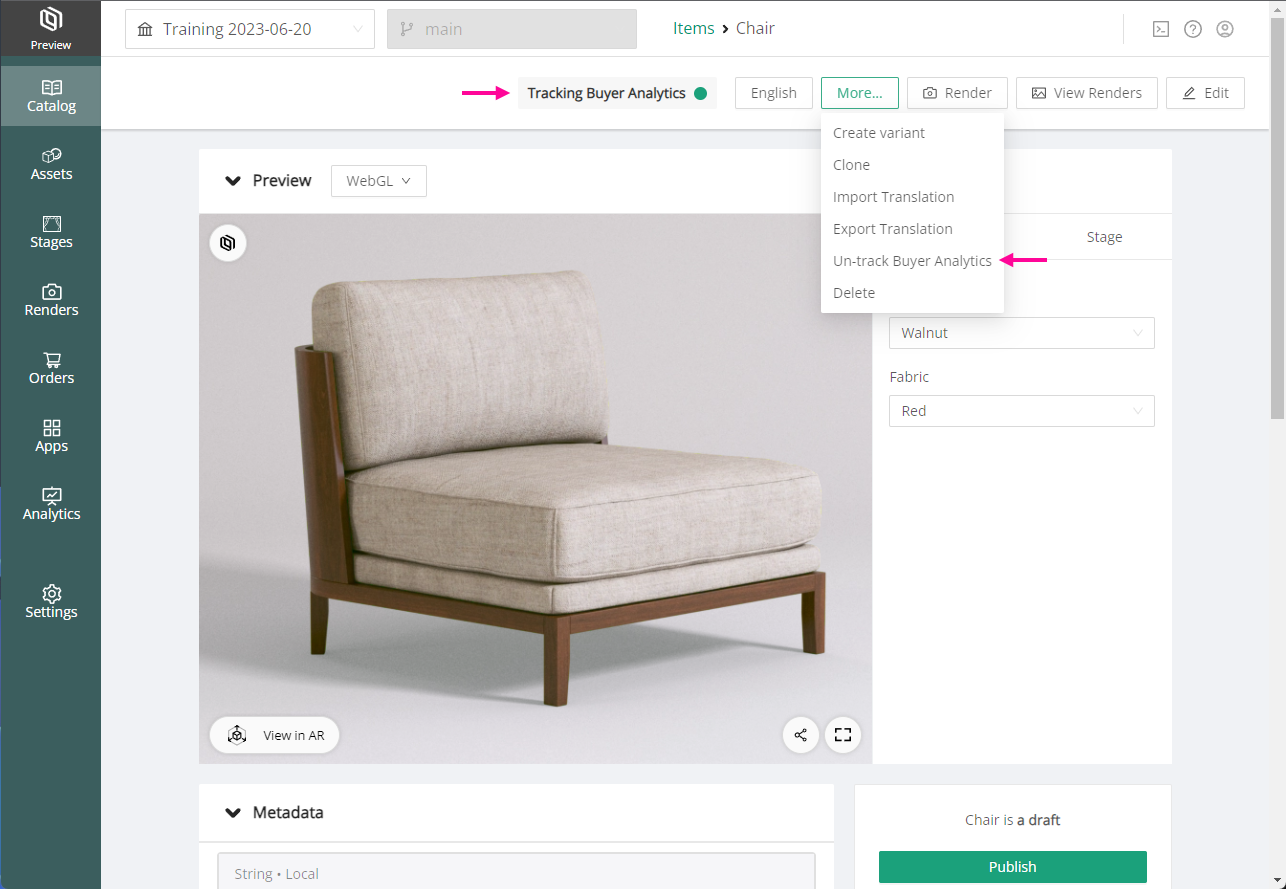
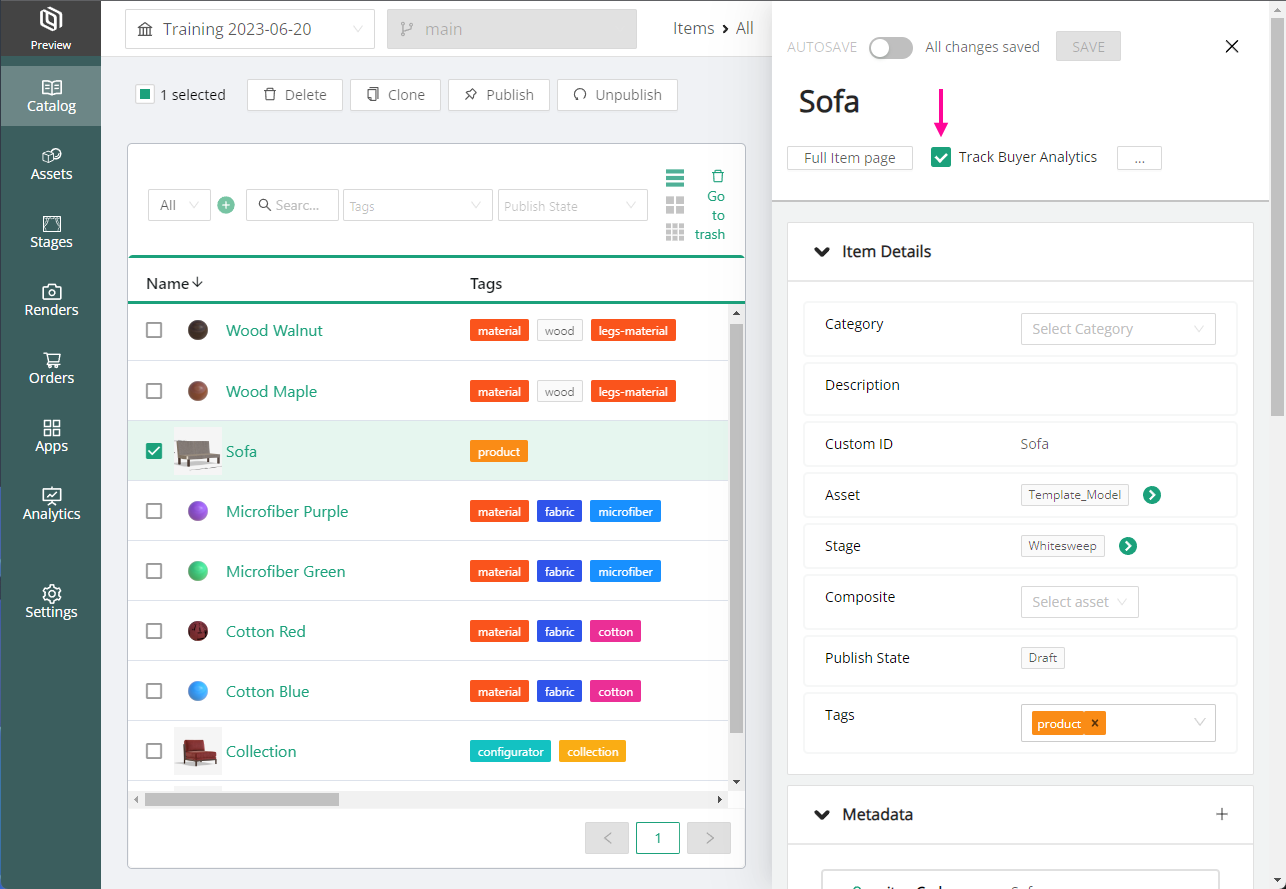
The Advanced Buyer Analytics is enabled by default on all existing and newly created Items in the Catalog. If you wish to stop tracking analytics on specific items, this can be done in a couple of different ways, from the individual Item page. Simply choose to U**n-track Buyer Analytics** from the **More...** button on the Item preview page, or check off the **Track Buyer Analytics** checkbox on the Item's Quick Edit panel.

<div><figure><img src="https://content.gitbook.com/content/efQOUWnh8WUpteoAKY9N/blobs/ETXxErjJz2BXf5SfN148/AnalyticsReports_06.png" alt=""><figcaption><p>Un-track Buyer Analytics on the Item Page</p></figcaption></figure> <figure><img src="https://content.gitbook.com/content/efQOUWnh8WUpteoAKY9N/blobs/Pn8BzI0GJbG4oMMXKkBf/AnalyticsReports_07.png" alt=""><figcaption><p>Track Buyer Analytics checkbox on Quick Edit Panel</p></figcaption></figure></div>

## Limitations

### Conversion Data

A very important aspect of buyer analytics are the choices that buyers actually make at the end of their experience with the configurator, and the journey that took them to their final decision.

At this time, ThreeKit is unfortunately unable to provide access to analytics data on **Add-To-Cart** or **Buy-Button** clicks by the end users, as these functions exist outside of the ThreeKit Player.

As a workaround please follow the [steps suggested above](#google-analytics) for connections to external analytics tools like Google Analytics.

### Data Analysis

The reports currently generated by ThreeKit only contain the raw analytics data. This makes it difficult to extract specific information, such as buyer trends for most popular configuration options over a given time period.

In order to easily visualize the data, an external toolset or scripts would be necessary at this time.